
Appearance
Bring-a-friend
Bring-a-friend flows help existing customers introduce guests while keeping attendance, capacity, waivers, and customer records clean.
Limits and requirements
- Customers can add up to 3 friends per booking unless your studio has a different limit. The same limit caps a customer's friends across all of their bookings for one session, so a larger party cannot be split over several bookings.
- A session never offers more friends than it has seats besides the booker's.
- The booker must be signed in with a customer account before booking for friends.
- Each friend needs a first name, last name, and email address.
- A friend cannot use the same email address as the booker.
- Private bookings cannot include friends because the private booking reserves the full slot.
- Friends count toward session capacity. Guest-pass friends still occupy seats, even when their payment is covered by the booker's membership guest-pass allowance.
- Friends may need to sign required waivers from their invite link before attending.
How to bring a friend
- Open the booking widget and select a public session with enough available capacity.
- In checkout, select Bring a friend.
- Choose the number of friends, then enter each friend's first name, last name, and email.
- Complete checkout. If the widget asks, sign in or create your customer account before booking for friends.
- Your friend receives booking details and, for a new customer, an account setup and waiver email. Ask them to complete any required waiver before arrival.
Check the party before continuing
Keep the booker's details separate from the guest's details. The orange callouts show how the expanded form relates to the people attending:
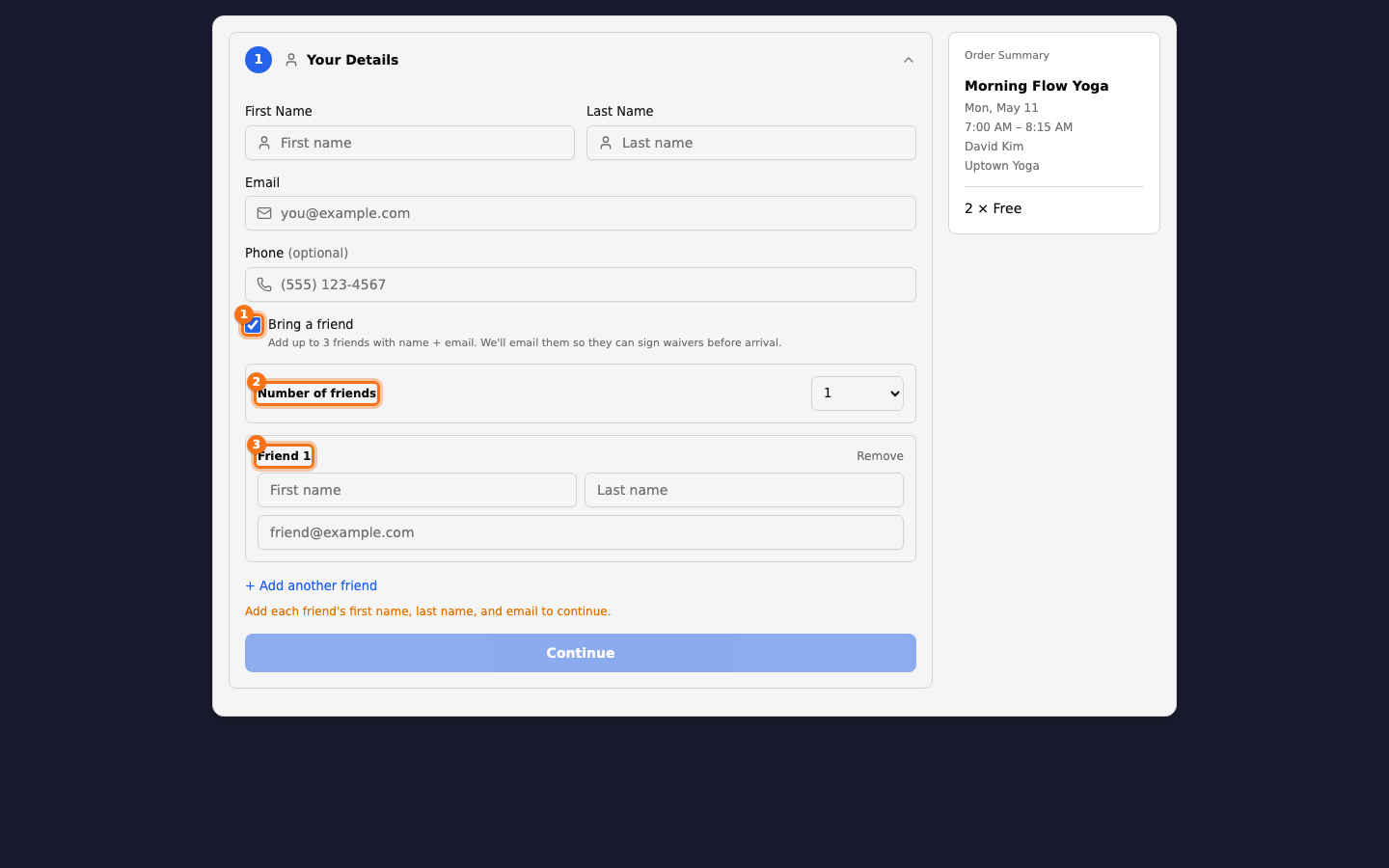
| Callout | What it means for this booking |
|---|---|
| 1 | Selecting Bring a friend reveals the guest fields. The booker's details above do not replace the friend's details. |
| 2 | The count is friends, not the whole party. In this example the booker is attending, so one friend reserves two seats in total. Select I'm not attending if only the friends will attend. |
| 3 | Complete every friend's first name, last name, and email before continuing. Use the friend's email, not the booker's, so the invite reaches the right person. |
The widget sends the invite after the booking succeeds. Existing customer records are matched by email, while new friends receive a new customer record. A friend booking reserves a seat for each person, so capacity and any applicable payment or guest-pass rules are shown in checkout.
What staff can review
Staff can open Attendance to see the guest in the session roster. A Friend booking badge identifies the guest brought by a customer, and the row shows any unsigned waivers that need attention before check-in.
Setup checklist
- Confirm sessions have enough capacity for guest bookings.
- Confirm required customer fields in Customer settings.
- Confirm waivers are enabled for the sessions or locations that need them.
- Confirm payment rules for guest attendance, such as a drop-in price, membership guest pass, or comp.
Operational tips
- Use customer search before creating a new guest record so returning guests are not duplicated.
- Keep waiver requirements consistent across booking widgets and front-desk check-in.
- Review attendance after the session to decide whether the guest should receive a follow-up email or membership offer.