
Appearance
Dashboard tour
The Dashboard is the home screen, titled {your studio} overview with the note Key metrics and recent activity at a glance. Check each card's time window: not every total is limited to the last 30 days.
Getting there
- Sidebar path: Dashboard (top of the sidebar).
- Permission: none to open the page. Metrics require
reports:read; the setup checklist requiresbrands:updateor coveringbrands:manageauthority. Location-scoped reporting shows one of your allowed locations, with a link to choose another in Reports.
Find your next task
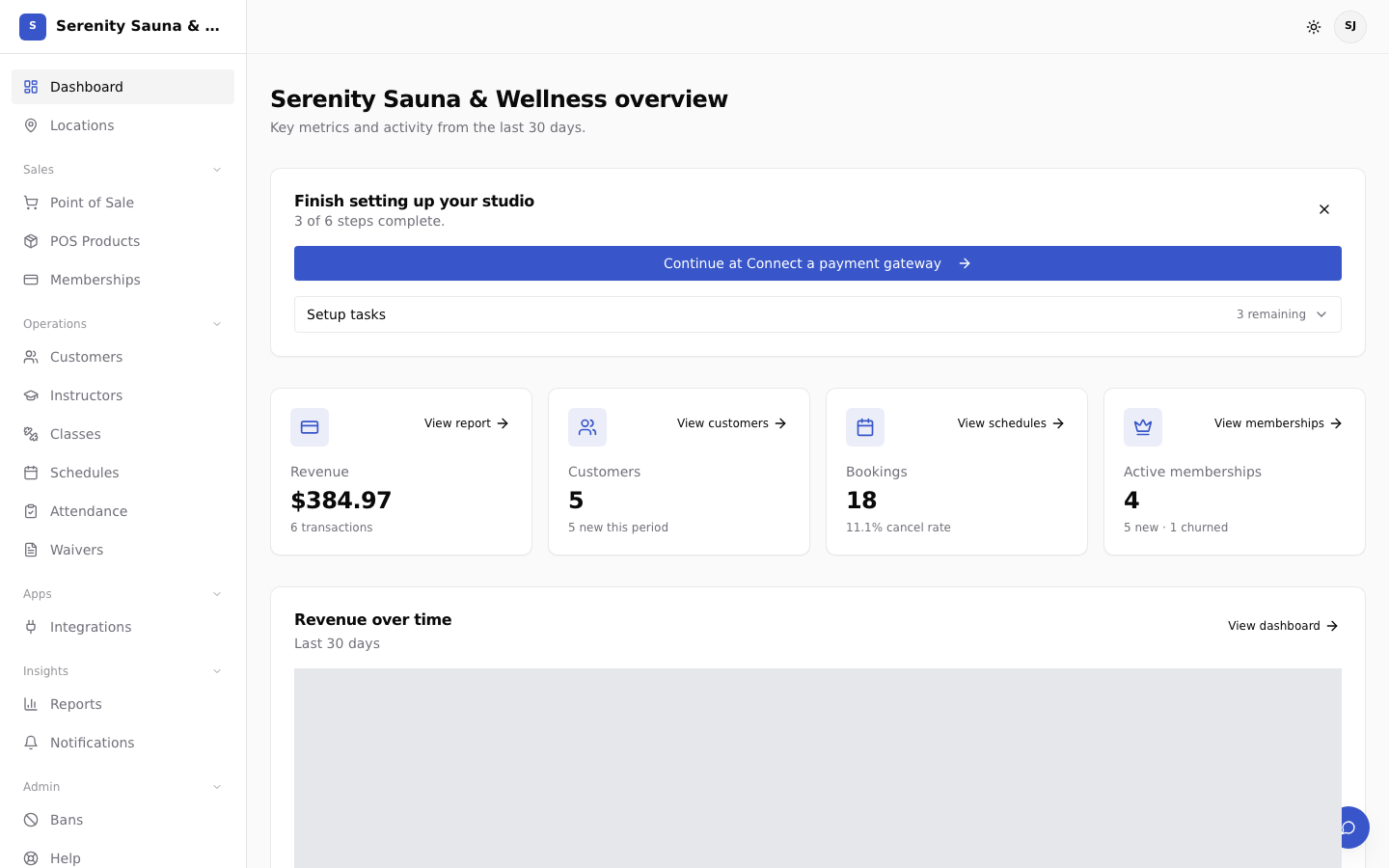
This image shows the overall layout with older labels. Use the instructions below for the current controls and metric definitions.
If the setup checklist is shown above the metrics, use it to finish getting your studio ready. Use the links on the metric cards to open the relevant working screen: customers, schedules, memberships, or reports. These links are available before setup is complete too, subject to your role's access. The dashboard summarizes activity; those screens are where you manage it.
What's on the page
Setup checklist
Before launch, staff with setup permission see Finish setting up your studio. Continue setup prioritizes required tasks; Finish setup returns to the launch step when those tasks are complete. Expand Setup tasks to see the five required signals and the optional payment connection: location, session, membership plan, booking widget, email verification, and payment gateway.
After launch, changes to live studio data do not reopen initial setup. The card shows only missing email verification and optional payment connection as direct recommendations under Available actions. It disappears when neither recommendation remains. Dismiss checklist hides the card for your account and studio.
Needs your attention
Needs your attention lists what is waiting on you on the staff side, each a link to the page where you deal with it:
- Time-off requests you may decide and requests for open shifts at your locations (
shifts:read; you only see those you can act on). - Shifts still in draft, this week from today and next week, in the same weeks the Shifts grid shows.
- People late or missing right now, from the Time clock's Today tab (
timesheets:read). - People whose hours in the last ended pay period are not approved yet (
payroll:read).
The card is hidden when nothing is waiting or your role can see none of it.
Stat cards
Four cards distinguish period activity from current totals:
- Revenue, last 30 days: with the number of transactions in that period. Gift cards count when they are redeemed, not when they are sold (see Reports & analytics).
- Total customers, all time: with how many are new in the last 30 days.
- Bookings, last 30 days: with the cancellation rate for that period.
- Memberships with active status: with how many were added and how many churned in the last 30 days.
Each card also has a Last 7 days trend. If a card or its trend cannot load, use its Retry button without refreshing the whole page.
Charts
- Revenue over time: revenue across the last 30 days.
- Popular sessions: your top 5 sessions by bookings.
Top customers
A Top customers table ranks customers By bookings, last 30 days, with Name, Bookings, and Last booking columns.